1. What is BHIM UPI & Why It Matters
Bharat Interface for Money (BHIM) is the sovereign digital payment application conceptualized and developed directly by the National Payments Corporation of India (NPCI). Named after Dr. B. R. Ambedkar, BHIM was launched to provide Indian citizens and micro-merchants with a simple, direct, and zero-fee mechanism to transfer money from bank account to bank account.
Unlike commercial third-party payment applications that bundle loan offers, mutual fund promotions, and scratch cards, BHIM is a focused, clean utility. For shopkeepers, government vendors, educators, and rural retailers, using a BHIM UPI QR code generator creates a trusted, official payment touchpoint with 100% interoperability across all Indian banking institutions.
2. Locating and Configuring Your BHIM (@upi) VPA
Every account registered on the official BHIM mobile application receives a primary Virtual Payment Address (VPA) ending with the universal sovereign suffix @upi.
To find your BHIM UPI ID:
- Launch the BHIM app on your mobile phone and authenticate with your passcode or biometric fingerprint.
- Tap on your Profile icon at the top right of the home dashboard.
- Your primary VPA will be clearly shown, typically formatted as
9876543210@upi(your linked mobile number) or a custom personalized handle likesharmagrocery@upi. - Verify which bank account is set as your Default / Primary Account to ensure incoming payments settle into the correct passbook.
@upi handle is reserved exclusively by NPCI for the official BHIM app, making it the most direct and universally recognized handle in the entire Indian payment grid.
3. Step-by-Step: How to Generate Your BHIM QR Code
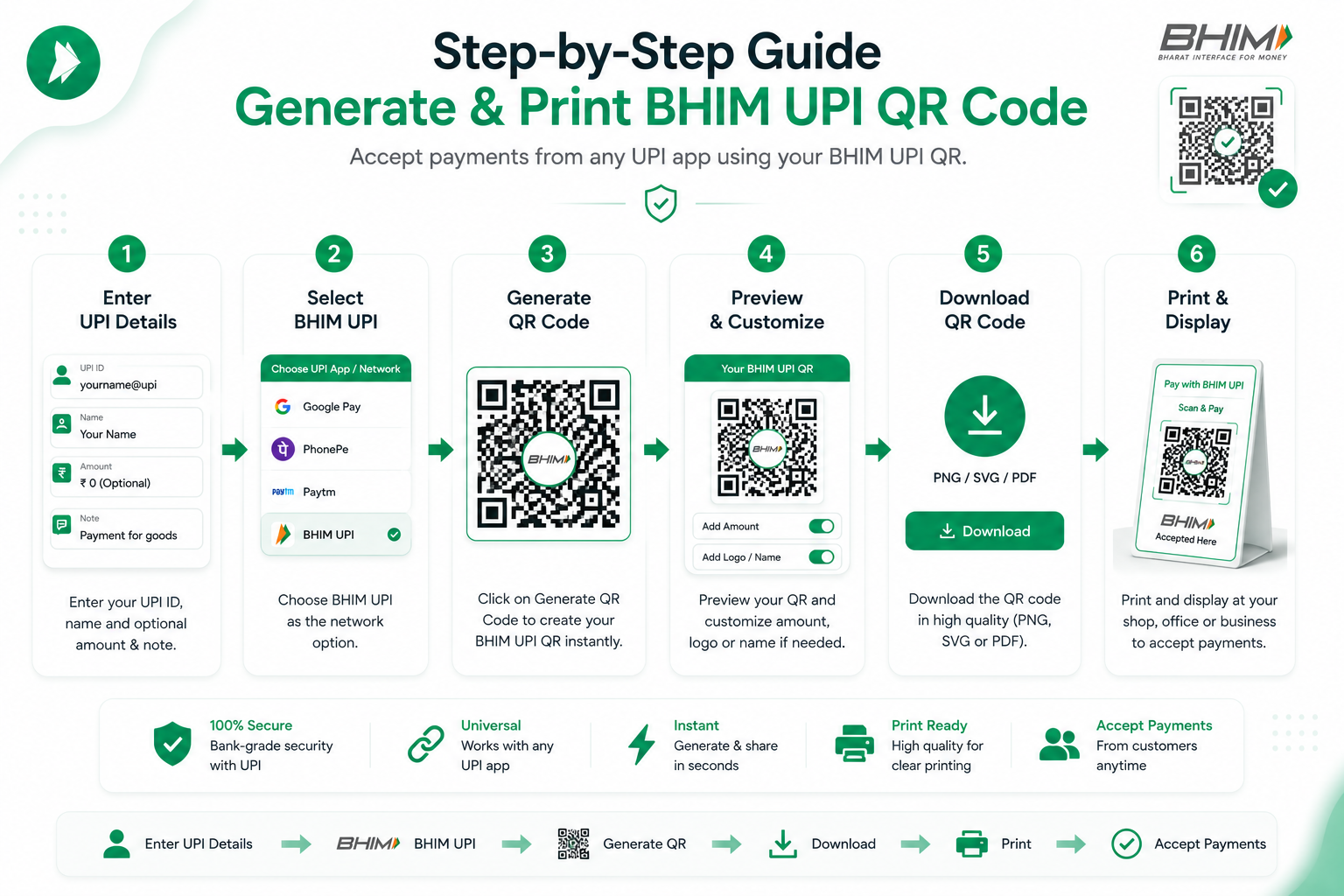
You do not need to rely on low-resolution phone screenshots to display your BHIM code. You can generate a crisp, vector-grade QR code on our free UPI QR generator in seconds:
- Navigate to the generator on our homepage.
- In the Payee UPI ID field, enter your BHIM handle (e.g.
9876543210@upi). - In the Payee Name field, enter your legal name or business trading name (e.g. Sharma General Store).
- (Optional) If you want to embed a preset price, toggle on Specify Fixed Amount and enter the rupee figure.
- Click Download PNG for 300 DPI image files, Download SVG for commercial printing, or Print Counter Standee (A4) for a checkout tent card.
Generate Your Official BHIM Payment QR Code
100% free client-side tool. Export high-res PNG, vector SVG, and A4 standees in 10 seconds.
⚡ Generate BHIM QR Code Now4. Setting Fixed Amounts in BHIM QR Codes
If you are collecting set charges—such as society maintenance dues, tuition fees, doctor consultation charges, or standard product bundles—you can compile a fixed amount directly into your BHIM QR code.
Under NPCI specifications, our generator formats the raw deep link as:
upi://pay?pa=9876543210@upi&pn=Sharma%20Store&am=250.00&cu=INR&tn=Order102
When any customer scans this code, their application automatically locks the amount at ₹250.00 in read-only mode, eliminating underpayment errors. Read our complete guide on generating UPI QR codes with fixed amounts for step-by-step instructions.
5. Cross-App Compatibility: Receiving from GPay, PhonePe & Paytm
A common misconception among first-time merchants is that a BHIM QR code can only accept payments from customers who also have the BHIM app installed.
This is completely incorrect. BHIM operates on the open NPCI protocol:
- A customer with Google Pay scans your BHIM QR → Google Pay parses your
@upihandle → Payment arrives instantly in your bank account. - A customer with PhonePe scans your BHIM QR → PhonePe processes the transfer seamlessly.
- A customer with Paytm, Cred, Amazon Pay, or WhatsApp Pay scans your code → Funds settle via direct IMPS bank clearing.
To understand the full architecture of interoperability, check out our explainer on how universal UPI QR codes work across all apps.
6. Printing and Displaying Your BHIM QR Standee
To ensure your checkout counter looks professional and inviting:
- Use A4 Acrylic T-Stands: Click the "Print Counter Standee (A4)" button on our tool. The formatted sheet includes your store name, BHIM QR code, and clear "Scan with Any UPI App" guidance. Insert this into a clear acrylic counter frame.
- Maintain Scan Line of Sight: Keep the stand at an arm's length from the customer on the cash desk, away from harsh overhead halogen lights that cause glare.
- Lamination: If pasting the QR on a food cart or outdoor stall, laminate the print to protect the high-contrast matrix from oil, grease, and rain.
7. Free BHIM QR Standees vs Paid Audio Soundboxes
In recent years, payment aggregators have pushed monthly subscription audio soundbox hardware. Consider the financial comparison:
- Audio Soundbox: Costs ₹125 to ₹299 per month in rental fees (₹1,500 to ₹3,500 per year) and requires regular charging and SIM card signal.
- Free Static BHIM QR Standee: Costs ₹0 forever. Relies on your existing mobile phone SMS and bank notification alerts for payment confirmation.
For small retailers and freelancers, a static standee provides 100% of the payment capability with zero recurring overhead.
8. Troubleshooting Common BHIM QR Issues
If you encounter issues receiving payments to your BHIM handle:
- Check Primary Bank Account: Inside the BHIM app, verify that your active bank account is set as the default recipient. If you linked multiple accounts, payments will route to whichever account is marked primary.
- Bank Server Downtime: Occasionally, individual public sector banks undergo scheduled core banking maintenance. If a customer's payment fails, verify if their issuing bank is temporarily offline.
9. Frequently Asked Questions
What is the standard handle for BHIM UPI accounts?
BHIM accounts created through the official NPCI application use the @upi handle (e.g. 9876543210@upi or yourcustomname@upi).
Can a BHIM UPI QR code accept payments from Google Pay or PhonePe?
Yes, 100%. BHIM operates on the core NPCI payment switch. Customers scanning your BHIM QR code with Google Pay, PhonePe, Paytm, Cred, or any banking app can transfer funds directly into your account.
Is BHIM affiliated with any specific commercial bank?
No. BHIM is developed by NPCI and supports all public, private, regional rural, and cooperative banks in India that participate in the UPI network.
Can I print an A4 standee for my BHIM UPI ID?
Yes. Simply input your @upi handle and name into our generator and click "Print Counter Standee (A4)" to print an acrylic-ready display card.