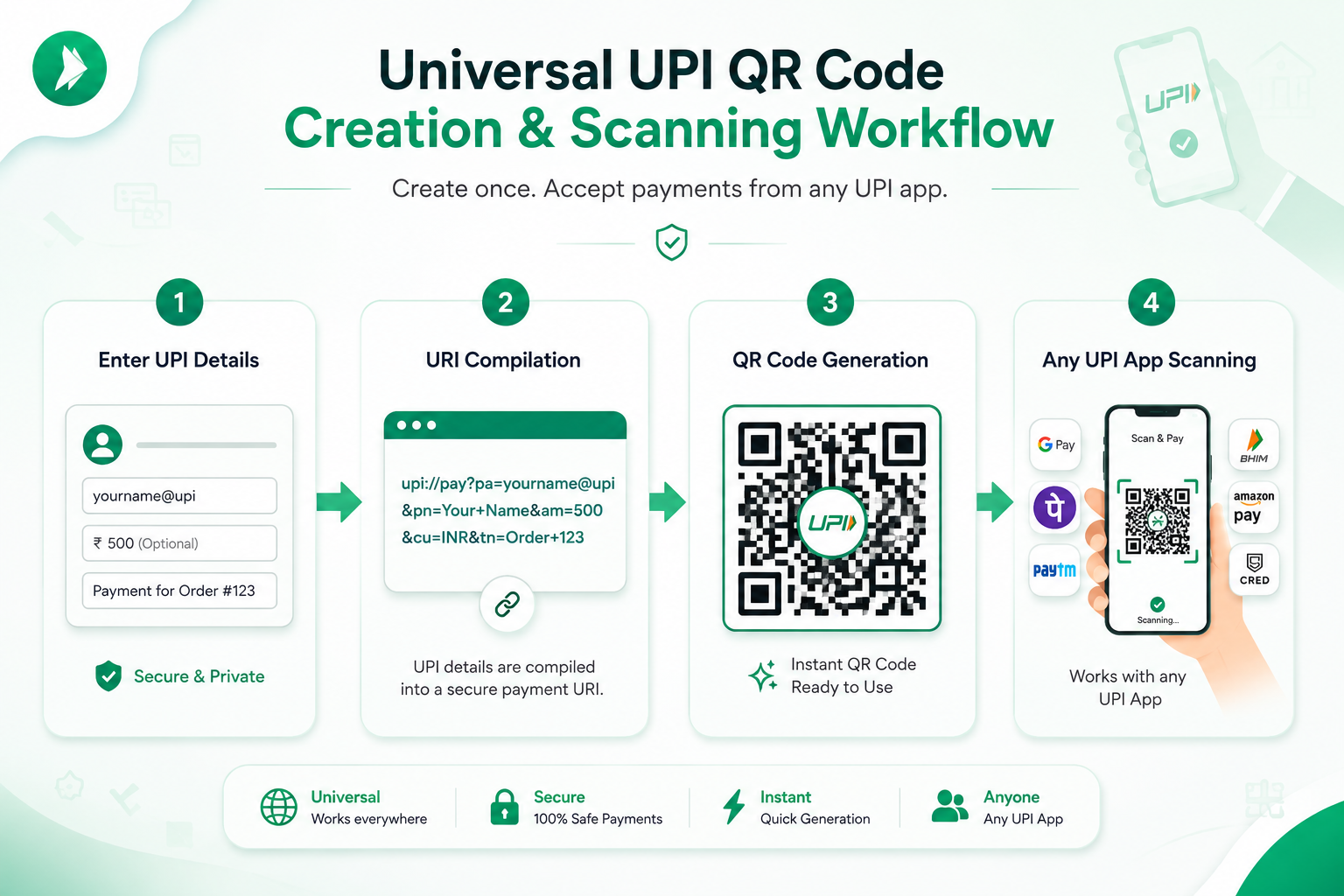
1. Why You Need a Universal UPI QR Code
The Unified Payments Interface (UPI) developed by the National Payments Corporation of India (NPCI) has fundamentally redefined retail commerce across India. Whether you operate a neighborhood grocery shop, run a consulting firm, freelance as a web designer, or manage apartment maintenance fees, accepting instant digital payments is essential.
However, many merchants make the mistake of setting up multiple separate QR standees—one for Paytm, one for PhonePe, and one for Google Pay—cluttering their billing counters. Other business owners pay monthly subscription fees for proprietary soundboxes when they only need a reliable way to collect funds.
When you generate a UPI QR code using standard NPCI deep linking (upi://pay), you create a single, universal code. Any customer scanning your standee can pay from whichever banking app they prefer—Google Pay, PhonePe, Paytm, BHIM, Amazon Pay, Cred, or their bank's mobile app—with funds settling directly into your bank account with zero Merchant Discount Rate (MDR) deductions.
2. How to Find Your UPI ID in Google Pay, PhonePe, Paytm & BHIM
Before you start, you need your Virtual Payment Address (VPA / UPI ID). This financial alias maps directly to your bank account without exposing sensitive bank account numbers or IFSC codes.
Here is how to locate your exact UPI ID inside popular payment apps:
- Google Pay (GPay): Open Google Pay → Tap your profile photo in the top right corner → Tap on your linked bank account. Your UPI ID will be listed under your details (common suffixes:
@okhdfcbank,@okaxis,@okicici,@oksbi). - PhonePe: Open PhonePe → Tap your profile avatar at the top left → Tap UPI IDs. Your primary handle is displayed with suffixes like
@ybl(Yes Bank) or@ibl(ICICI Bank). - Paytm: Open Paytm → Tap your profile avatar or swipe open the left navigation drawer. Your primary UPI handle is listed directly under your mobile number, ending with
@paytm. - BHIM App: Open BHIM → Your primary VPA is displayed on the main home screen, typically formatted as
mobilenumber@upi. - Mobile Banking Apps (HDFC, ICICI, SBI Yono, Axis): Navigate to the UPI / BHIM Payments section inside your official mobile banking application to view your registered VPA handle.
@bankname suffix. Omitting the bank handle or misspelling a letter will render the QR code invalid.
3. Step-by-Step: How to Generate Your UPI QR Code
Generating your custom payment QR code on our free UPI QR code generator takes less than 30 seconds. Follow these 4 simple steps:
- Step 1 — Input Payee UPI ID: Navigate to the generator on our homepage and enter your verified VPA into the Payee UPI ID field.
- Step 2 — Enter Payee / Business Name: Type your official personal name or business entity name (e.g. Sharma General Store). This name will appear on the customer's phone screen upon scanning to verify recipient identity.
- Step 3 — (Optional) Set Fixed Amount & Note: If you are billing a specific amount (such as ₹499 for a set menu or ₹1,200 for a service invoice), toggle on Specify Fixed Amount, input the amount, and add a transaction note.
-
Step 4 — Live Preview & Download: Your QR code matrix renders immediately in the browser panel. Choose your desired export format:
- 📥 Download PNG (300 DPI): High-resolution raster image ideal for WhatsApp billing, email invoices, and screen displays.
- 📐 Download SVG: Lossless vector file suitable for professional print shops, large banners, and acrylic laser cutting.
- 🖨️ Print Counter Standee (A4): Opens a pre-styled, ready-to-print checkout display card for acrylic table stands.
Create Your Free Payment QR Code in 30 Seconds
100% free, client-side, with zero server tracking and universal app support.
⚡ Launch Free Generator Tool4. When to Embed Fixed Amounts vs Open Payments
Our tool allows you to create two distinct types of static QR codes depending on your commercial workflow:
A. Open Amount QR Codes (Best for General Retail & Restaurants)
When you leave the amount field empty, the compiled QR string contains only your VPA and payee name. When a customer scans the code, their payment app opens with an empty amount field, allowing them to enter the exact bill total calculated at checkout. This is the standard configuration for grocery stores, bakeries, cafes, and street vendors.
B. Fixed Amount QR Codes (Best for Invoices, Rent & Products)
When you enable the fixed amount feature, the generator appends &am=500.00 to the deep link URI. When scanned, the customer's UPI application locks the payment figure in read-only mode. Customers cannot alter the amount, preventing underpayment and calculation mistakes.
Fixed amount codes are widely used for:
- Monthly apartment maintenance and rental collection.
- Doctor and dental clinic consultation fees.
- Gym memberships and coaching class fees.
- Fixed-price restaurant thali menus and event tickets.
Read our dedicated tutorial on creating UPI QR codes with fixed amounts for advanced use cases.
5. How to Test Your QR Code Before Displaying It
Never print and display a QR code on a public counter without conducting a simple 3-step verification test:
- Screen Scan Test: Keep the generator open on your desktop or tablet. Open Google Pay, PhonePe, or BHIM on your smartphone and scan the screen preview.
- Verify Payee Verification Name: Ensure that your registered business or legal name displays clearly on the app confirmation screen without spelling errors.
- Perform a ₹1 Test Payment: Execute a ₹1 test transfer to yourself. Confirm that you receive an instant credit SMS notification from your bank within 10–15 seconds.
6. Printing Counter Standees & Retail Setup Best Practices
A high-quality physical standee speeds up billing and protects your shop from fraud:
- Use Acrylic Counter Stands: Print your display using the "Print Standee (A4)" option and insert the paper into a clear acrylic T-stand or L-stand. Avoid loose stickers that can peel or tear.
- Prevent QR Swap Fraud: Ensure your QR standee is placed in direct view of your cash counter. Fraudsters occasionally try to stick their own QR stickers over merchant stands in unattended corners.
- Optimal Lighting: Position the QR code under even ambient lighting. Avoid placing the acrylic stand directly beneath harsh halogen spotlights which produce camera glare on phone scanners.
7. Troubleshooting Common UPI Scanning Issues
If a customer experiences difficulty scanning your printed QR code, check these frequent causes:
- Incorrect Bank Handle Suffix: If payments fail immediately after scanning, check whether your UPI handle has a typo in the bank suffix (e.g.
@okhdfcinstead of@okhdfcbank). - Lamination Glare: If phone cameras struggle to focus, angle the acrylic stand slightly forward to reduce overhead reflection.
- Daily Transaction Limits: Standard peer-to-peer UPI transfers have an NPCI daily cap of ₹1,00,000. Large merchant payments exceeding daily bank limits may require payment through a current account or net banking.
8. Frequently Asked Questions
Do I need a commercial merchant account to generate a UPI QR code?
No. You can use any existing personal savings or business current account UPI ID (VPA). The QR code compiles the standard NPCI payment string which works across all personal and merchant accounts.
How do I safely test my newly generated UPI QR code?
Scan the on-screen preview or printed code using a secondary phone with Google Pay, PhonePe, or BHIM. Confirm that your registered name appears accurately, and complete a ₹1 test transfer to verify instant credit in your bank account.
Can a single printed QR receive payments from both Google Pay and PhonePe?
Yes, absolutely. Because the QR code adheres to the universal NPCI specification (upi://pay), it is 100% interoperable across Google Pay, PhonePe, Paytm, BHIM, Cred, and all 50+ banking apps in India.
Is there any monthly fee or transaction charge for using this tool?
No. Our generator is 100% free with zero fees, zero subscription cuts, and zero Merchant Discount Rate (MDR) deductions.